Choose a list
Open MSFS 2024, MSFS 2020, National Parks, After Dark, Tiny PG or the country lists.
 Air Rhodessa's
FSPGHangar.com
Air Rhodessa's
FSPGHangar.com
Search hundreds of photogrammetry locations, narrow them by rating or country, keep your own flying list, compare cities, view coverage maps, discover optional add-ons and quickly choose somewhere new to explore.
You can be finding a new flight in less than a minute.
Open MSFS 2024, MSFS 2020, National Parks, After Dark, Tiny PG or the country lists.
Search by city, country, airport, POI, update or rating, then combine filters as needed.
Save favourites, mark places as flown and instantly show only unvisited locations.
Check the entry, coverage map, nearby airport, key POIs and any optional recommended add-ons.
Best first visit: use the homepage search for a quick result, or open the Combined Lists when you want the full search, filters, maps, favourites and comparison tools in one place.
Each section has a different job, but they all work together.
The controls can be combined, so a very large list can quickly become a handful of useful results.
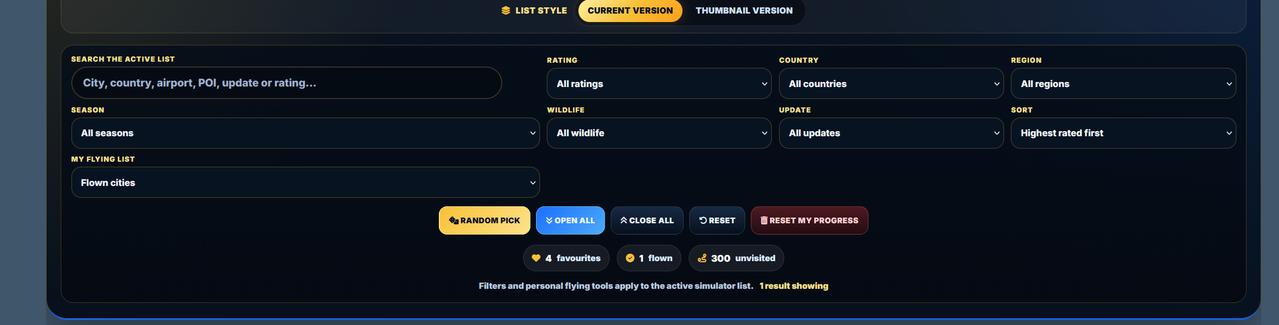
Type a city, country, airport code, POI, update name or rating. Results update as you type.
Filter by rating, country, region, season, wildlife or update. The available controls change to suit the active list.
Show everything, favourites only, flown locations or places you have not visited yet.
Choose a random result, open or close all rating sections, clear the filters or reset your personal progress.
See your total favourites, flown entries and unvisited locations at a glance.
The list reorganises its controls for the narrower screen. Open the filter/search area when needed, make your choices, then close it again to return more space to the city cards.
Turn the shared database into a simple personal logbook without creating an account.
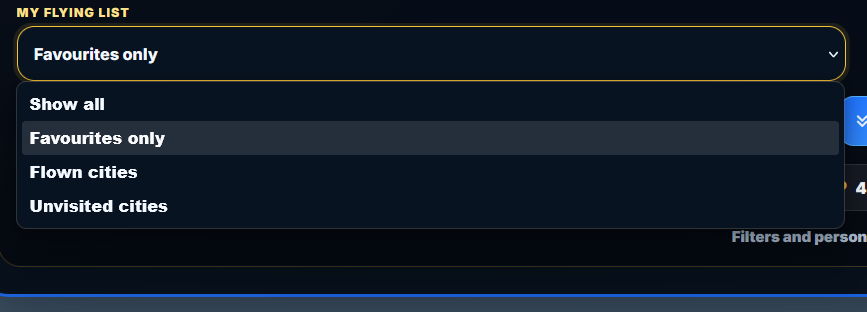
The box always shows which personal filter is active.
Returns to the full active list while keeping your saved progress.
Shows the places you have marked with the gold Favourite button.
Shows entries you have already marked as flown.
Hides flown entries and helps you choose somewhere new.
Favourites and flown progress are stored locally in your browser on that device. They are not attached to a PG Hangar account. Clearing browser data, switching browsers or using another device may therefore show a different list.
Each card is a compact flight-planning summary rather than just a city name.
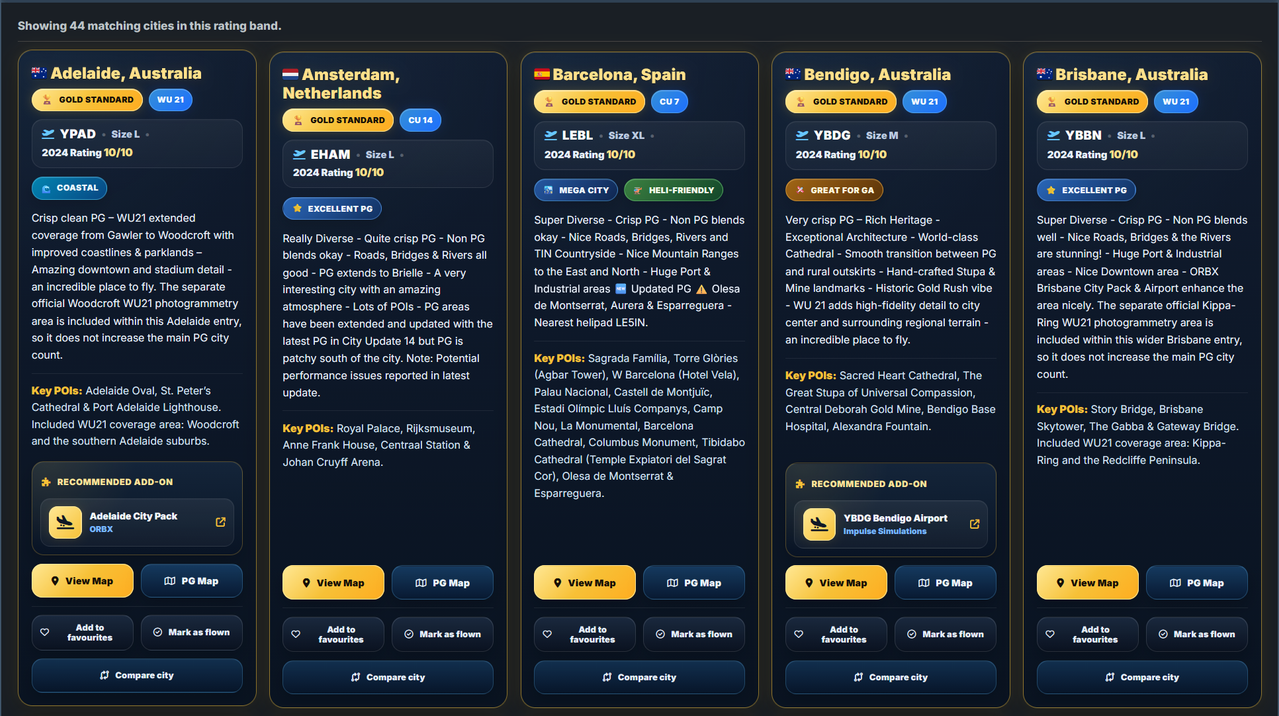
City, country, nearby airport, size, simulator rating, update badge and useful flying tags.
A concise account of the PG quality, blending, coverage and landmarks worth looking for.
Optional scenery that can enhance the airport, city, landmarks or night environment. Open the dropdown when several are listed.
Open the supplied location map or the dedicated PG coverage map for that entry.
Add the city to your personal shortlist or record that you have already explored it.
Select up to three entries and open a side-by-side comparison.
A small numbered badge tells you how many recommendations are attached to the city. Press the panel to reveal them. Each entry identifies the scenery and developer, and the external-link icon opens the relevant product or information page.
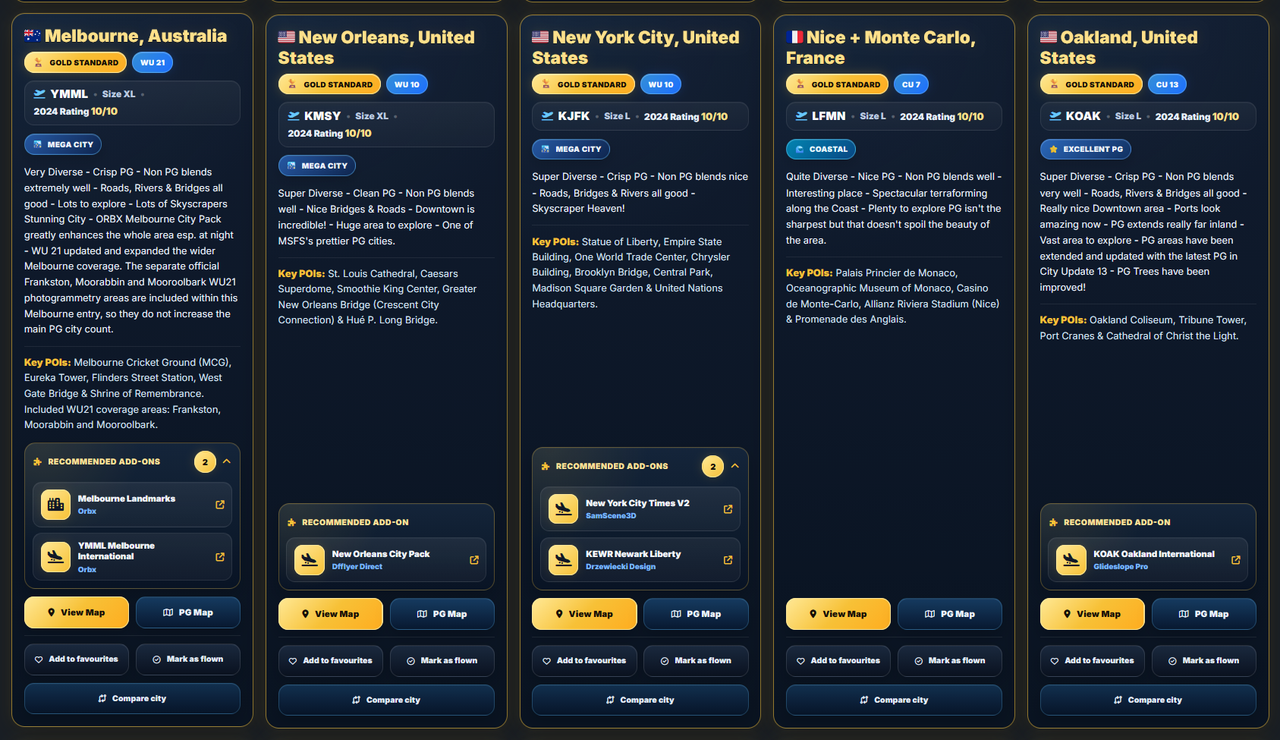
The two map buttons serve different purposes.
Opens the general location map supplied for the entry, helping you see the city or area in its wider geographic setting.
Opens the photogrammetry coverage reference, helping you understand approximately where the PG area begins and ends.
PG Hangar does not currently list separate coordinates for every individual POI. Use the city, airport code, map and POI names together when planning in MSFS.
The outlined area is a visual guide to the available photogrammetry coverage. Use it to plan a route that remains inside the most interesting scenery rather than treating it as a list of individual landmark coordinates.
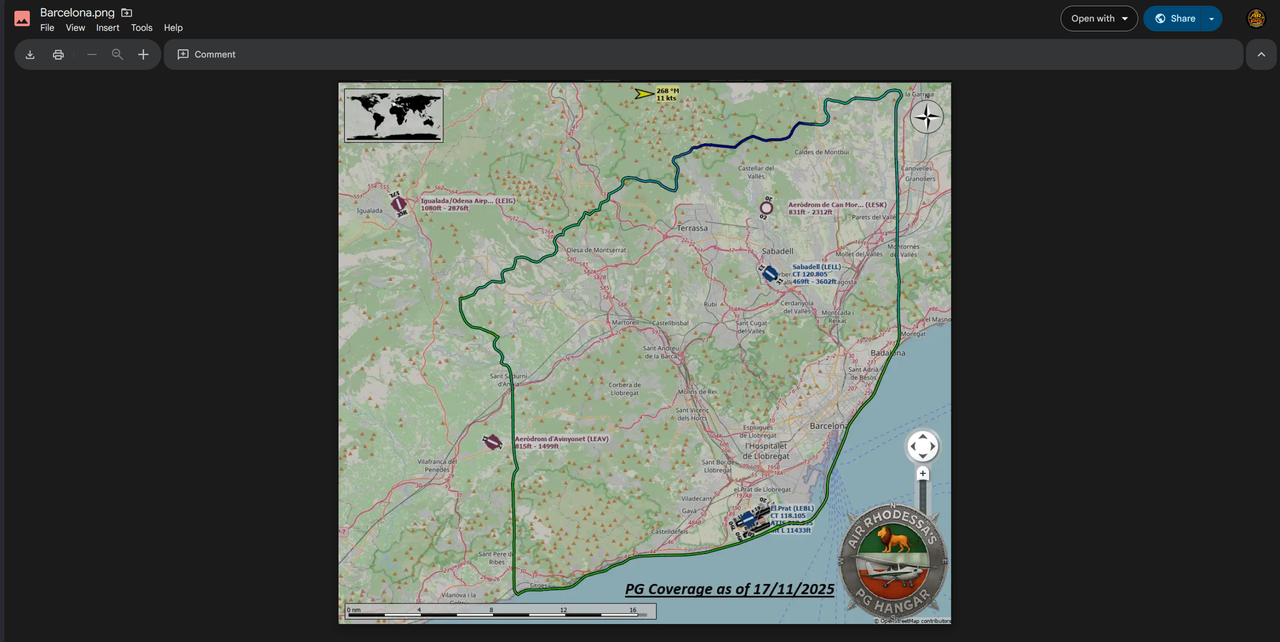
Search for the listed city or nearby airport in the World Map, then use the Key POIs and map links to shape your route. For a sightseeing flight, starting at the listed airport and flying toward the city centre is usually the simplest approach.
These tools are designed to save time and make the lists more enjoyable to use.
Chooses from the results currently visible after your filters are applied.
Expands the visible rating or category sections for easier scanning.
Folds the list back down when the page begins to feel too long.
Clears searches and filters. It does not erase favourites or flown progress.
Erases saved favourites and flown marks from that browser. Use it carefully.
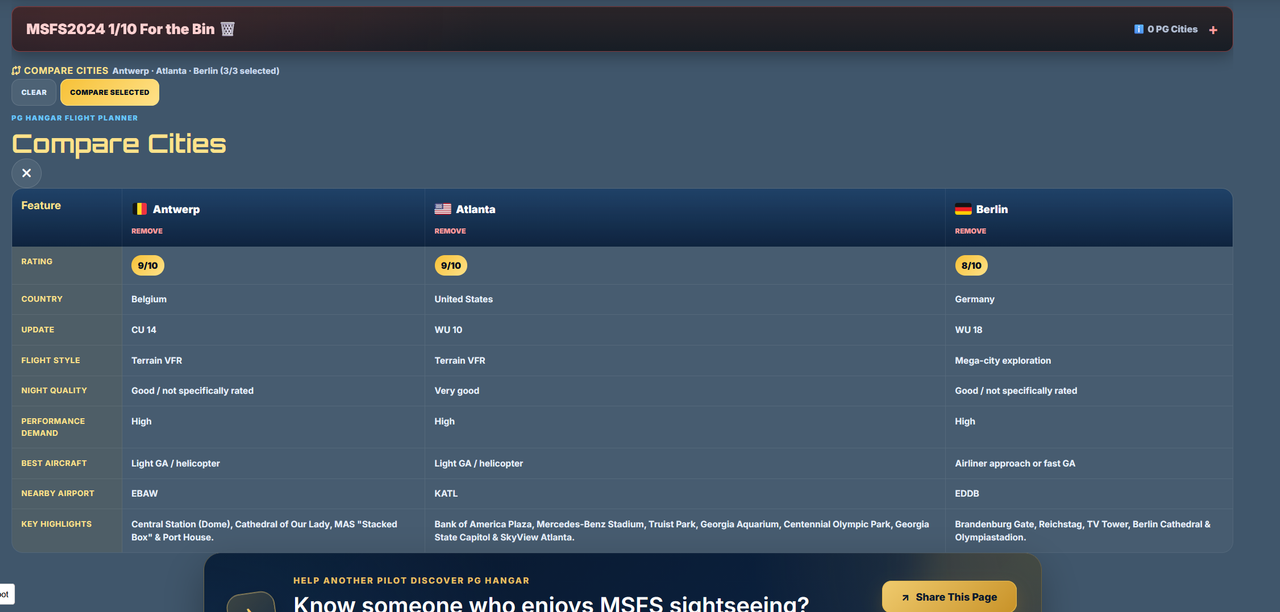
Select up to three city cards, then compare their ratings, size, airport, tags and notes together.
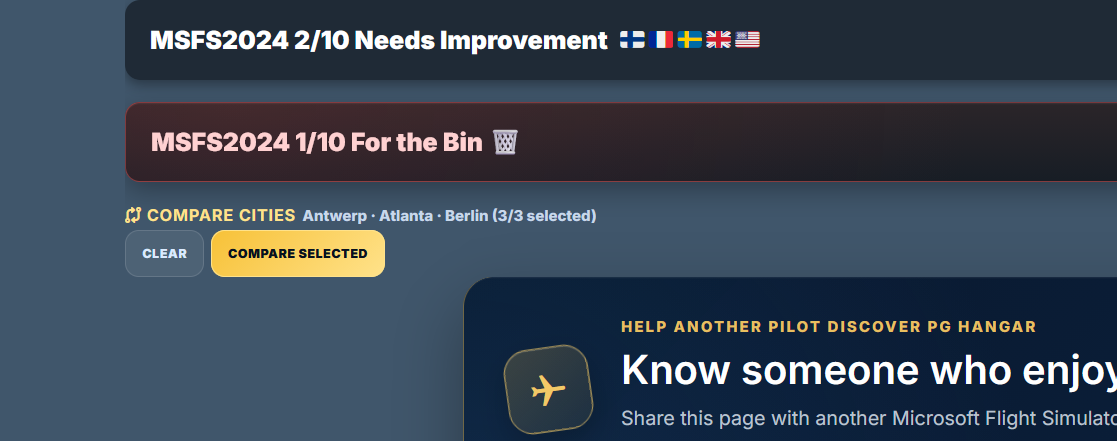
Press Compare City on the first entry.
Select one or two additional cities.
Open Compare Selected in the comparison dock.
Every press of Compare City adds that location to the comparison dock. Once two or three cities are selected, press Compare Selected to open the full table and compare ratings, countries, sizes, airports, tags, add-ons and notes.
Ratings consider overall PG quality, coverage, blending, infrastructure, visual interest and how enjoyable the area is to explore.
The Gold Standard badge is reserved for specially selected 10/10 entries. A city can be rated 10/10 without automatically receiving the badge.
Read the full rating guideSearch the questions or open the sections that interest you.
Air Rhodessa’s PG Hangar is an independent, community-focused guide to photogrammetry locations in Microsoft Flight Simulator. It combines ratings, map references, POIs, add-on suggestions, personal tracking and discovery tools.
Use the homepage search when you want a quick result, or open the Combined Lists when you want the full set of search, filter, map, favourite, flown and comparison tools. You can also open the MSFS 2024 list and browse the rating bands.
Photogrammetry can look or perform differently between simulator versions, so each list keeps its own rating and information rather than assuming the experience is identical.
WU means World Update and CU means City Update. The number identifies the relevant Microsoft Flight Simulator update associated with that location or coverage.
They are notable landmarks, districts or features worth looking for during a flight. They are suggestions rather than a complete list of everything in the city.
No. PG Hangar is primarily a city-wide photogrammetry discovery and rating resource. The city, airport, map and POI names are provided to help plan the flight, but separate latitude and longitude values are not currently listed for every landmark.
View Map gives the general location reference for the entry. PG Map is the photogrammetry coverage reference, showing the area you are likely to find PG scenery within.
No. They are optional recommendations that may improve airports, landmarks, lighting or the wider city. The underlying PG entry can still be explored without buying or installing them.
Entries with several recommendations use a compact dropdown to keep the city card tidy. Open it to see the full list and developer links.
Press Compare City on up to three entries. A comparison dock will appear; choose Compare Selected to view the cities side by side.
Not automatically. Progress is saved locally in the browser you are using. Another phone, computer or browser has its own separate local progress.
Reset clears the current search and filters. It does not remove your saved favourites or flown marks.
It removes the favourites and flown progress stored in that browser. This is deliberately separate from the normal Reset button so your personal list is not erased accidentally.
No. PG Hangar is an independent fan-made resource. Ratings reflect the site’s testing and assessment of the overall flight-simulation experience.
The lists are updated as locations are tested, simulator updates arrive, corrections are reported and worthwhile add-ons are discovered. Check the site NOTAMs for recent changes.
Yes. Use the Community Hub to submit a suggestion, correction, report or other useful information.
Yes. Visit the Community Vote page to take part and see the live standings.
Yes. Controls and card layouts adapt to smaller screens. Some larger tool areas are collapsed behind a button so the page remains easier to use on a phone.
Open the Photogrammetry & TIN explainer for a plain-English introduction.
PG Hangar grows through testing, corrections and useful feedback from fellow simmers.