Choose where to flyType a city, country, region, World Update, ICAO code or airport name into Start near. Live suggestions now help you choose the right place.
Enjoying PG Hangar? Help keep the Hangar flying.
Support the Hangar
 Air Rhodessa's
FSPGHangar.com
Air Rhodessa's
FSPGHangar.com
PG HANGAR FLIGHT MANUAL
How to Use the Adventure Builder
Build it. Edit it. Add to it. Land along the way. Then take the finished route straight into Microsoft Flight Simulator 2024.
V2.3
Visual Adventure Builder Guide
1
NEW HERE?
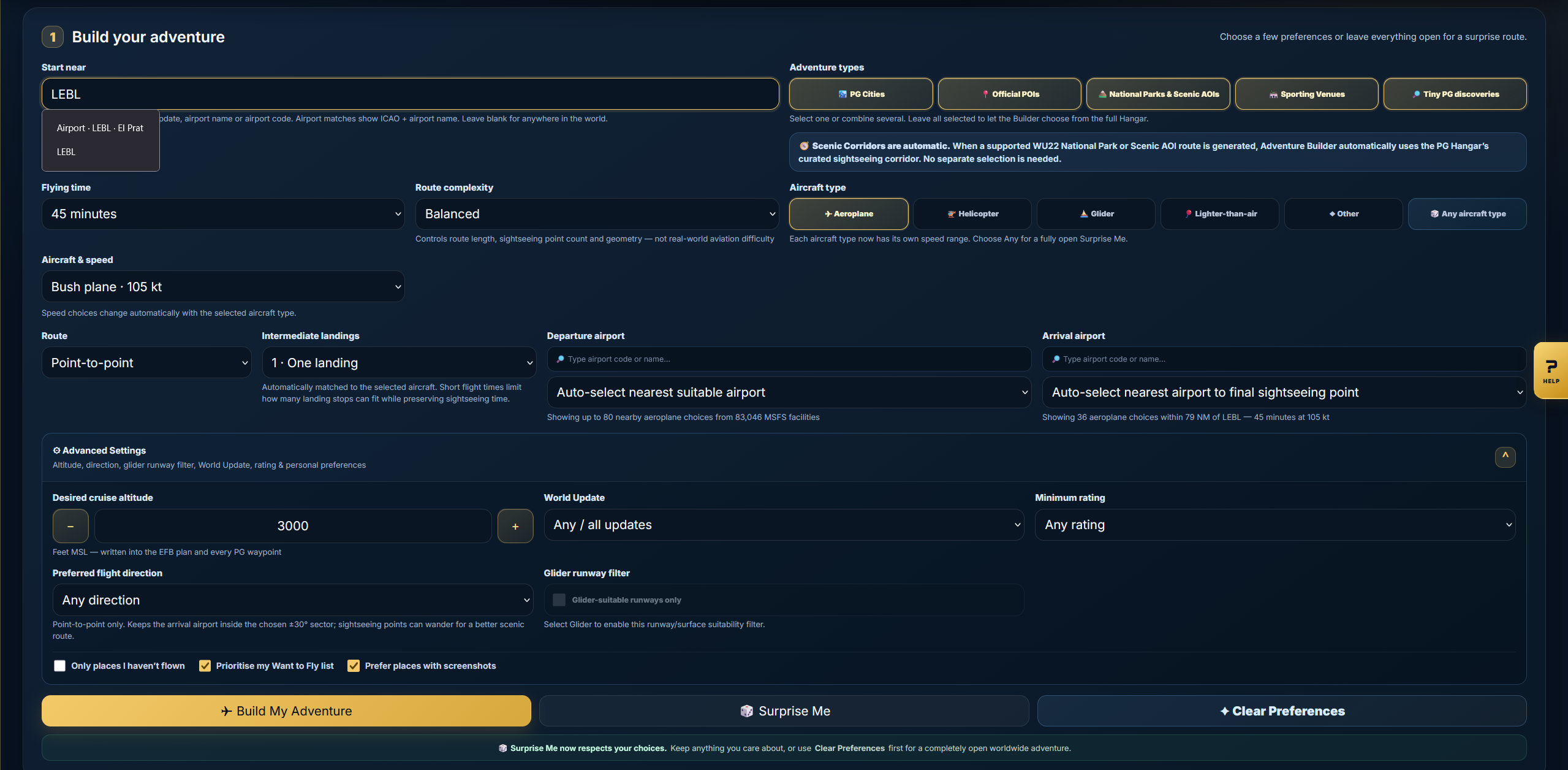
Your first adventure in about 60 seconds
You can leave most settings alone and still get a complete route.
Choose your timePick how long you want to fly. The Builder aims the adventure around that window.
Choose your aircraftSelect the aircraft class and speed. Speed choices now change to suit aeroplanes, helicopters, gliders, lighter-than-air and other aircraft.
Pick the route stylePoint-to-point is the normal default. Choose a preferred flight direction if wanted, or switch to Return to start. You can also request up to three intermediate landings.
Build itPress Build My Adventure. The map, briefing, route strip, distance and time are generated together.
Make it yoursReorder points, browse nearby POIs with screenshot previews, add an airport landing, insert your own waypoint or switch map style before exporting.
 Screenshot 1
🔍 Enlarge
Screenshot 1
🔍 Enlarge
NEW
UPDATED FOR ADVENTURE BUILDER V2.3
The big improvements added over the last few days
The guide now covers the latest planning, airport-search, map, preview and route-editing tools.
Preferred Flight Direction
For point-to-point adventures you can prefer a general direction. The Builder uses it to steer the arrival sector without throwing away good sightseeing points elsewhere on the route.
Live airport search
Departure and Arrival airport lists are searchable. Exact or unique matches can select immediately, while wider searches show choices so you can pick the right facility.
Glider-suitable runways
When flying a glider, the optional suitability filter can favour facilities that better match glider-style runway needs instead of treating every airport as equally useful.
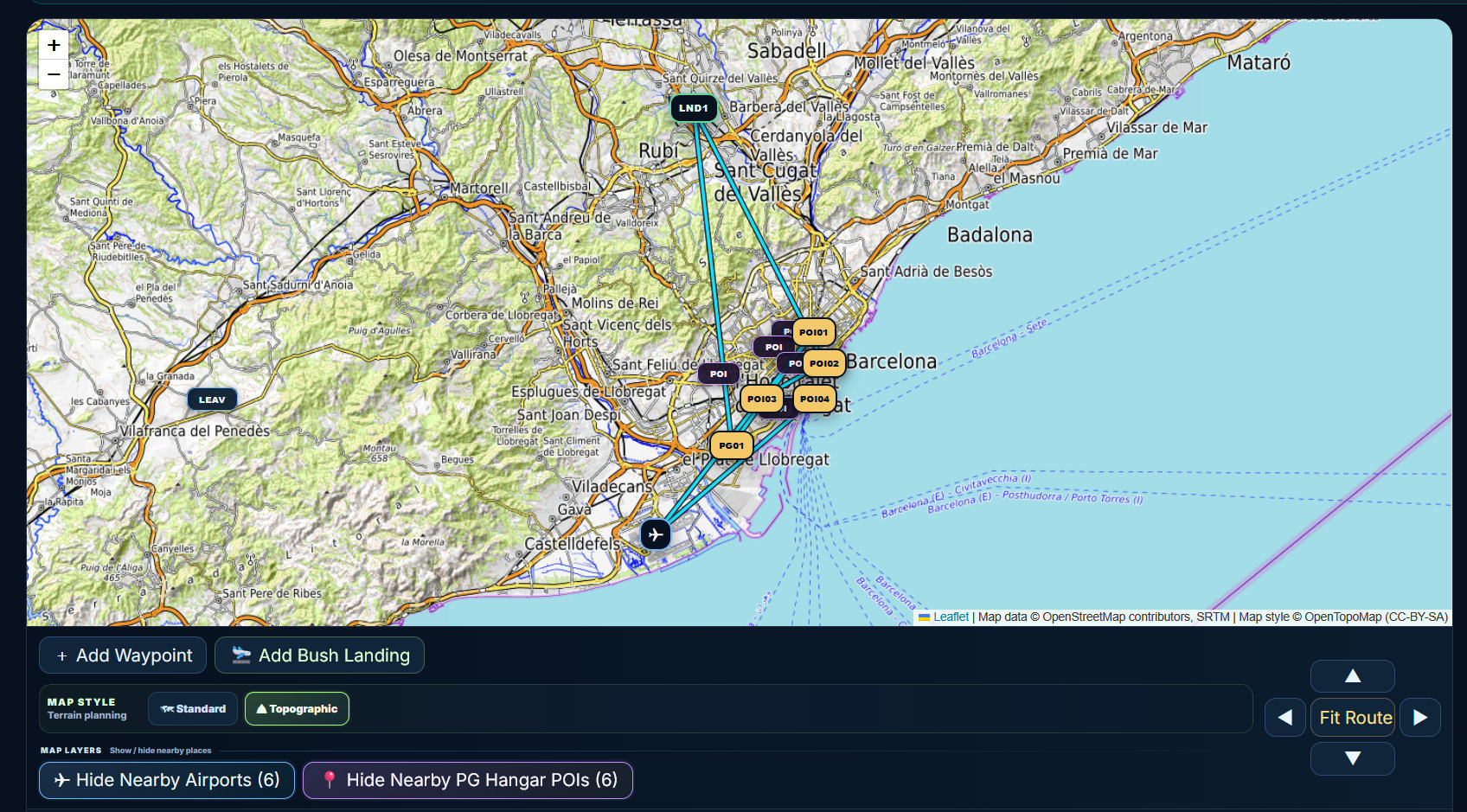
Standard / Topographic map
Switch the route map between the normal view and the new Topographic view when terrain shape, ridges, valleys and elevation context matter more than roads and towns.
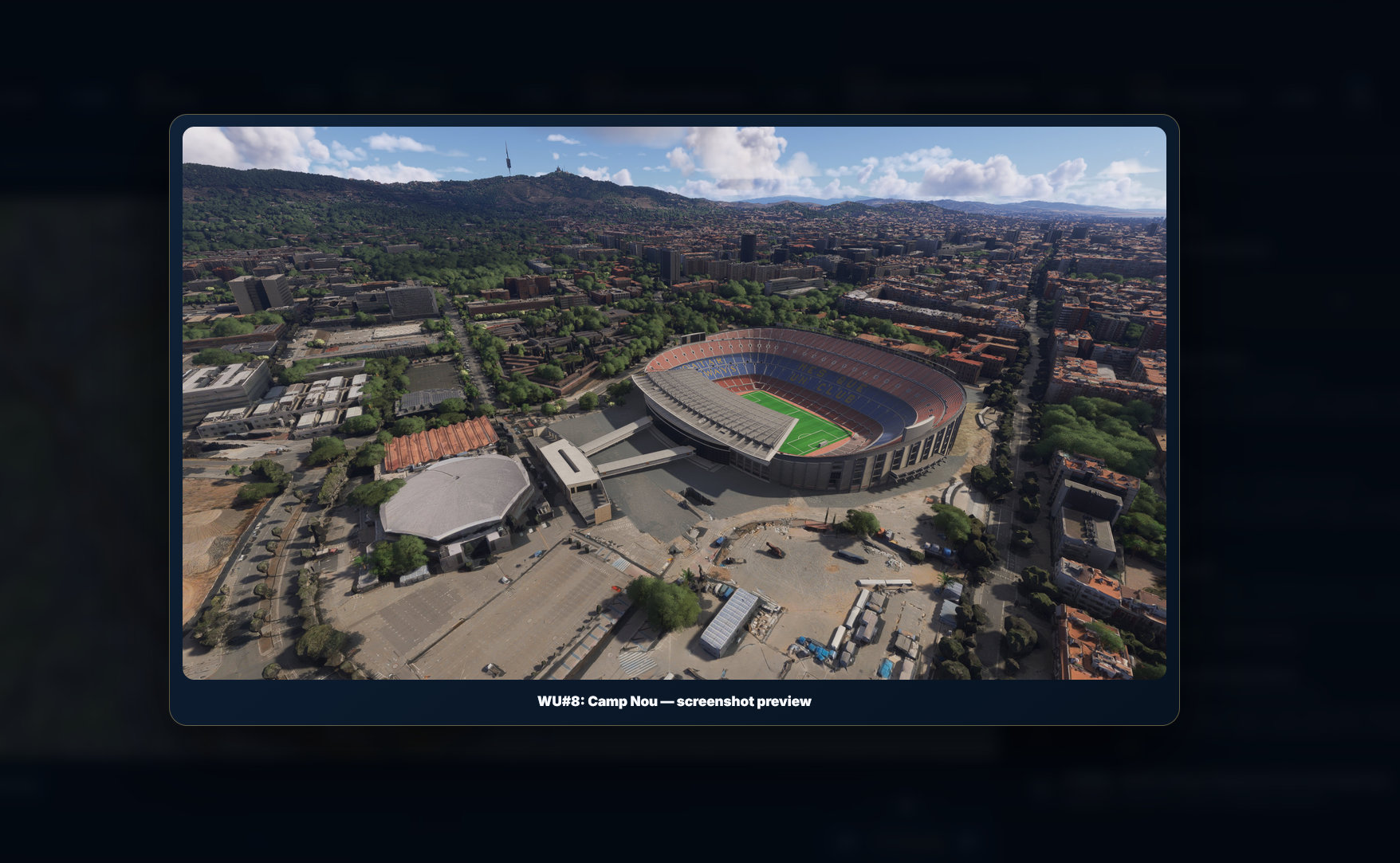
POI screenshot previews
Nearby browsing POIs and sightseeing points already in the route can show image thumbnails. Use Enlarge to open a bigger preview before deciding what to add or keep.
Safer route editing
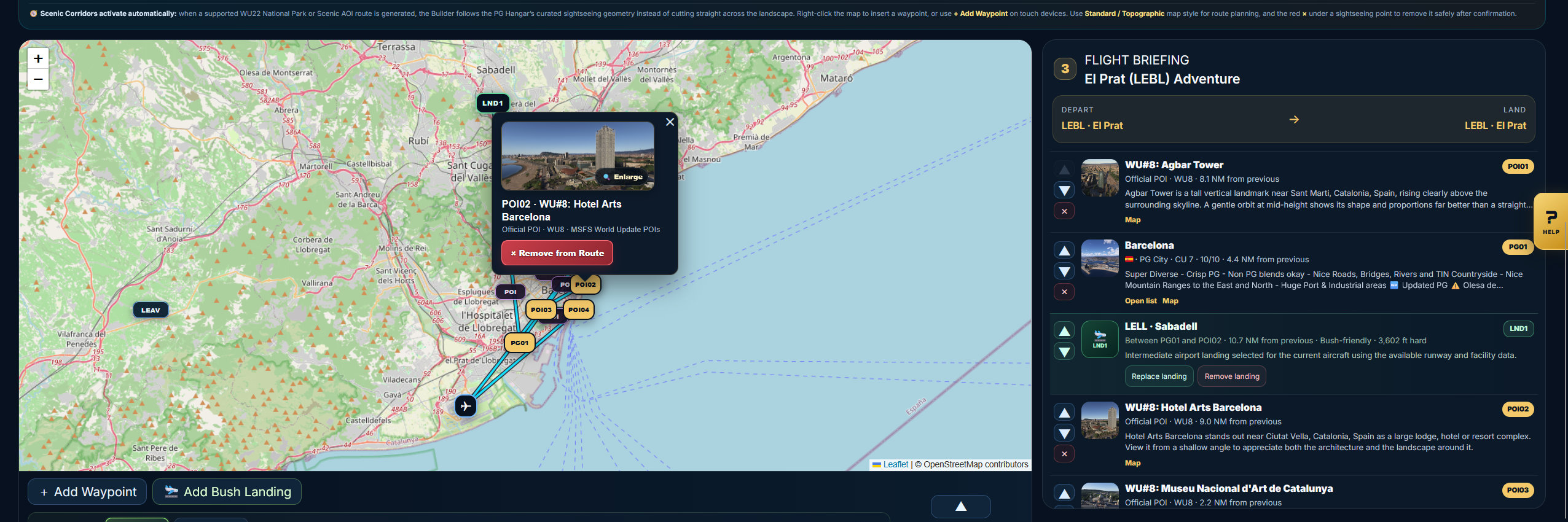
Removing sightseeing points or manual waypoints now asks for confirmation from both the Flight Briefing and map popups, helping prevent accidental route changes.
Also improved:
smarter full-route waypoint insertion, wider nearby-POI discovery, clearer briefing spacing, selected direction/filter shown in the generated-route summary, better startup behaviour and improved protection against badly undershooting a requested flight duration.
2
BUILD YOUR ADVENTURE
What the main controls do
Start near
Search by place, country, region, World Update, airport name or ICAO code. Live suggestions show useful matches, and an exact airport code can act as the geographic anchor for the closest PG Hangar locations.
Adventure types
Choose one or mix several: PG Cities, Official POIs, National Parks & Scenic AOIs, Sporting Venues and Tiny PG discoveries.
Flying time
Select the amount of time you have available. This helps determine the reach and number of sightseeing points in the generated route.
Route Complexity
Simple / Balanced / Complex changes route length, sightseeing-point count and geometry. It is not an aviation-danger rating.
Aircraft type
Aeroplane, helicopter, glider, lighter-than-air or other. Departure, arrival and nearby-airport choices are filtered to fit the selected class.
Aircraft & speed
Speed ranges are now aircraft-specific: Aeroplane 65–480 kt, Helicopter 65–180 kt, Glider 45–160 kt, Lighter-than-air 20–90 kt and Other 40–600 kt. Any suitable speed lets the Builder choose.
Smarter Surprise Me
Surprise Me preserves choices you have already made and randomises only the settings left open. Worldwide randomisation is also spread more evenly instead of repeatedly favouring dense regions.
Clear Preferences
Use Clear Preferences when you want the opposite behaviour: open everything first, then let Surprise Me create a genuinely unrestricted adventure.
⚙️Advanced SettingsAltitude, World Update, minimum rating and personal preferences
Desired cruise altitude is written into the generated plan and PG waypoints. You can also limit the route to a World Update, set a minimum PG Hangar rating, prefer places with screenshots, prioritise your Want to Fly list, build around places you have not yet flown, and use open Any / No preference choices when you want the Builder to decide.
3
AIRPORTS & DIRECTION
Control where the adventure starts and finishes
Airport selection is now faster to search and more closely tied to the kind of flight you are building.
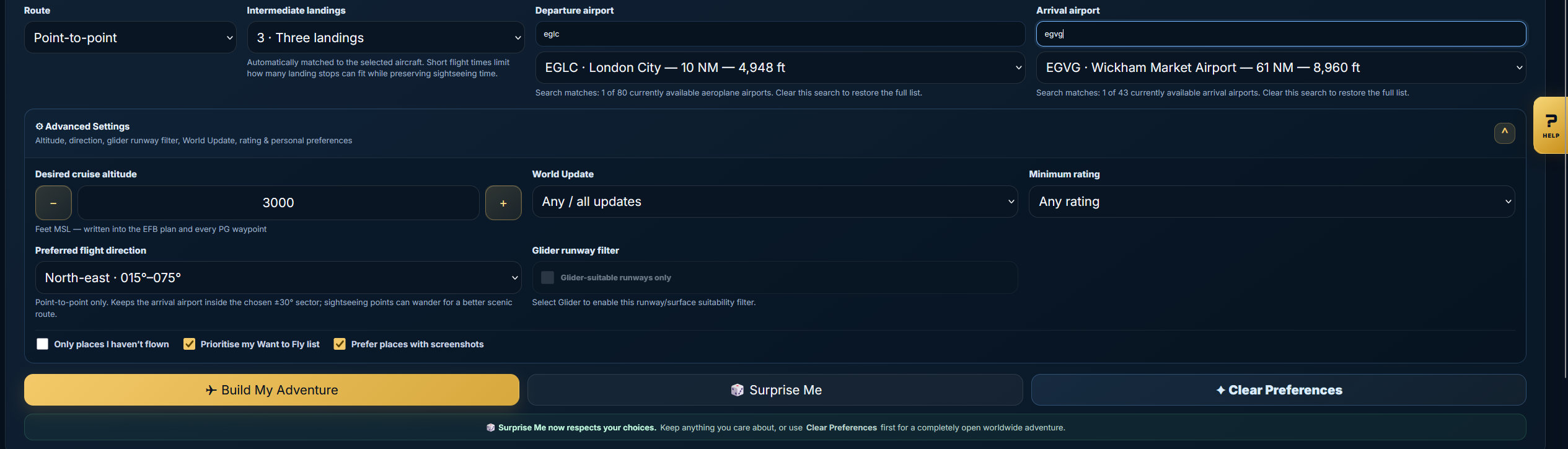
Search Departure
Type an ICAO code or airport name into the Departure search. Exact or unique matches can be selected straight away; broader matches give you a choice.
Search Arrival
Point-to-point is the normal default, so Arrival remains available. If you switch to Return to start, the Builder uses the departure again and the separate Arrival choice is no longer needed.
Preferred Direction
Choose a broad direction for a point-to-point flight when you want the route to finish generally north, east, south or west of the start. It guides the arrival sector rather than rigidly filtering every POI.
ICAO
Start near understands airports too
Typing an airport such as EGCL · London City or LEBL · Barcelona–El Prat can anchor the adventure around that airport and the nearest suitable PG Hangar locations.
GLD
Glider runway suitability
The optional glider filter is intended for glider planning. It helps narrow airport choices using runway characteristics rather than applying the same airport assumptions used for powered aircraft.
 Screenshot 2
🔍 Enlarge
Screenshot 2
🔍 Enlarge
4
READ THE ROUTE
Understanding the waypoint labels
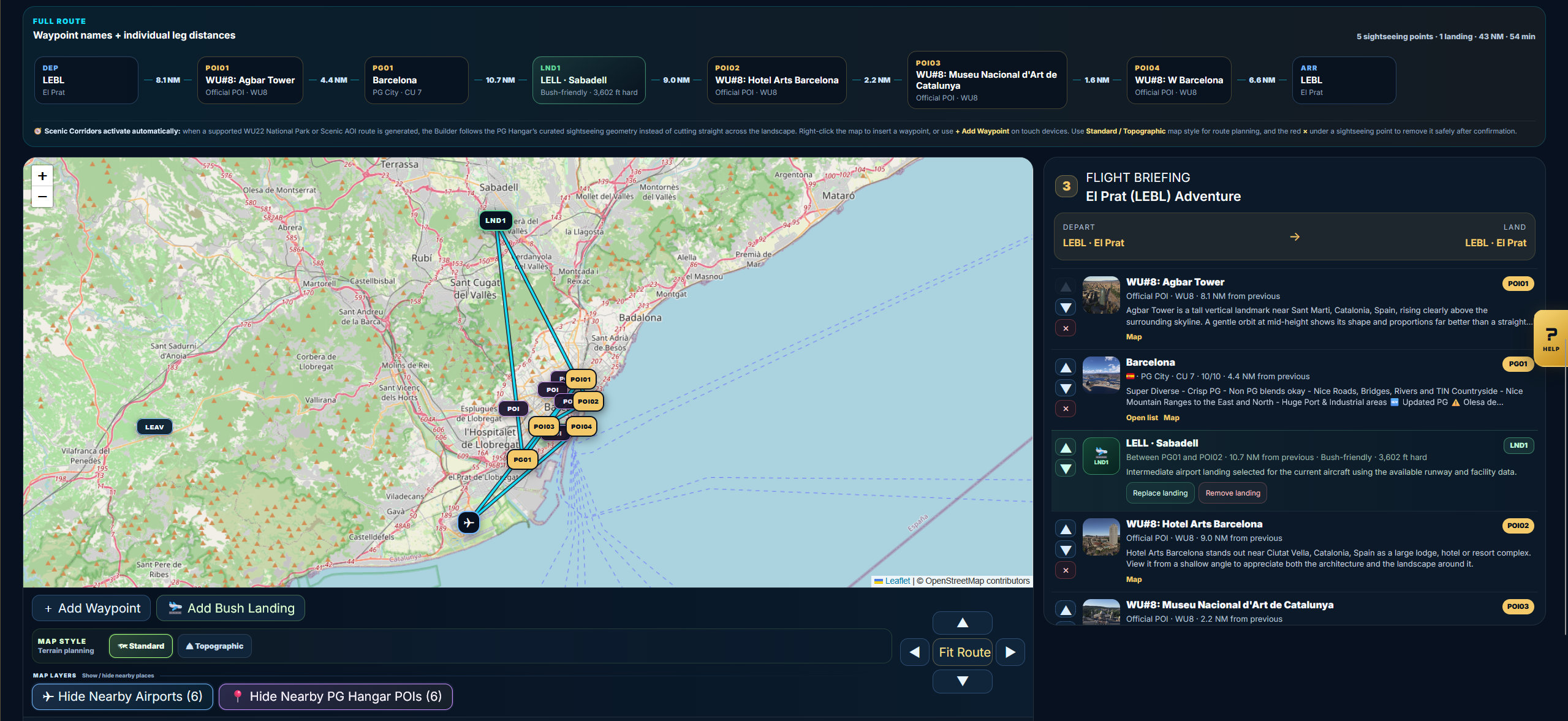
The prefix tells you what kind of point you are looking at.
DEPDepartureYour starting airport or facility.
PG01PG CityPhotogrammetry sightseeing location.
POI01Official / General POILandmark or official simulator POI.
SV01Sporting VenueStadium, arena, circuit or other sporting landmark.
NP01National ParkNational Park sightseeing point where used.
AOI01Scenic AOIScenic-area / corridor-related point where used.
WP01Manual WaypointYour own added or directional waypoint. Manual points remain cyan.
LND1Intermediate LandingA landing stop between departure and arrival.
ARRArrivalYour final destination airport or facility.
DEP→
POI01→
PG01→
LND1→
SV01→
ARR
 Screenshot 3
🔍 Enlarge
Screenshot 3
🔍 Enlarge
5
EDIT THE ROUTE
The generated route is not locked
Once the route appears, you can change both its sequence and its geography.
▲ / ▼ changes the sequence
Use the narrow arrow controls beside a point in the Flight Briefing to move it earlier or later in the flight. The route strip, line, numbering, leg distances and estimated time are recalculated, and the selected direction/filter remains visible in the route summary.
WP01
Dragging changes position only
Drag a cyan manual waypoint on the map to change its physical location. Dragging does not silently reorder the route — the ▲ / ▼ controls do that.
+ Add Waypoint
Click the button and then click the map, or right-click the map directly. The Builder inserts the new waypoint in a sensible route position; you can then rename, drag, remove or resequence it.
 Screenshot 4
🔍 Enlarge
Screenshot 4
🔍 Enlarge
6
LAND ALONG THE WAY
Intermediate landings
Landing stops are separate from sightseeing points.
Choose 0–3
Before building, choose whether you want no intermediate landing or one, two or three along the route. The available choices stay synchronised with the displayed flying time so impossible short-duration combinations are avoided.
Aircraft-aware selection
The Builder uses the selected aircraft/class plus the available runway and facility data when choosing suitable airports.
Edit afterwards
Move a landing earlier/later, replace it with another suitable airport, or remove it completely. The maximum remains three.
🛬 Add Bush Landing
For the Bush plane profile, you can place your own off-field landing point on the map. This is a planning point only: Adventure Builder does not validate terrain, slope, obstacles or real landing suitability.
7
POWERFUL MAP EDITING
Use the map to discover more
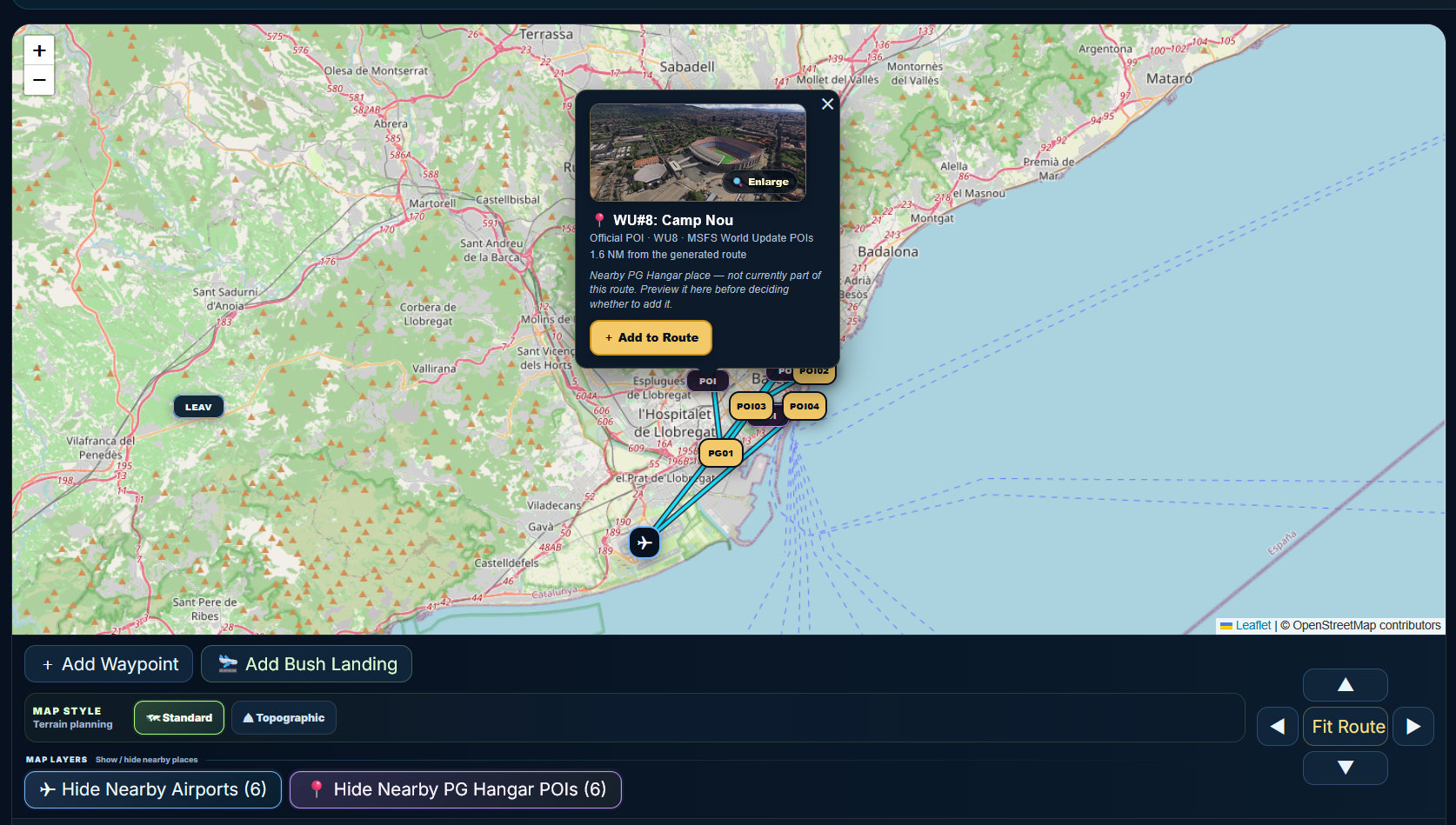
✈ Nearby Airports
Blue ICAO markers show compatible nearby MSFS airports that are not already part of the route.
Click marker → Add as Landing📍 Nearby PG Hangar POIs
Browse a wider pool of interesting PG Hangar places close to your route even when the generator did not originally select them.
Click marker → Preview / Add to Route🗺️ Standard / Topographic
Switch map style while planning. Topographic view is especially useful for ridges, valleys, National Parks, Scenic AOIs and terrain-led VFR flying.
Switch style without rebuilding🔍 Screenshot Previews
Nearby POIs and sightseeing points already on the route can display lead-image thumbnails. Use the Enlarge control when you want a closer look.
Preview before you decideWhen you add something from the map, Adventure Builder evaluates the route, inserts it into a sensible position and recalculates the line, Full Route strip, distance, time and Flight Briefing automatically.
 Screenshot 5
🔍 Enlarge
Screenshot 5
🔍 Enlarge
 Screenshot 6
🔍 Enlarge
Screenshot 6
🔍 Enlarge
 Screenshot 7
🔍 Enlarge
Screenshot 7
🔍 Enlarge
8
SCENIC CORRIDORS
You do not need to switch them on
Supported WU22 routes activate curated geometry automatically
When Adventure Builder generates a supported WU22 National Park or Scenic AOI route, it uses the PG Hangar’s curated sightseeing corridor instead of simply drawing direct lines across the landscape.
You can still add, move and resequence your own route points afterwards.
9
KEEP OR FLY IT
Save, share and take it into MSFS 2024
Save
Keep the adventure in your saved collection. Signed-in users can use the Builder’s account-sync features across devices.
Share
Create a shareable version of the adventure so another pilot can open the route.
Download .PLN
Download the MSFS 2024 EFB-compatible flight plan after you have finished editing. The accompanying route/briefing output now uses clearer spacing and carries the final planning choices more cleanly.
COMMUNITY-SHAPED IMPROVEMENTS
Built with pilots who kept testing it
Recent Adventure Builder improvements were heavily shaped by community testing and ideas from @baracus250, @SmootheryVase665 and @johnwhite92, including the planning refinements, safer editing, airport-search work and Topographic Map direction.
STILL STUCK?
The easiest rule: click it and experiment
Adventure Builder is designed so most route edits recalculate immediately. Build a route, try the live airport search, switch map style, preview nearby POIs and watch the Full Route strip and Flight Briefing update as you go.
Adventure Builder screenshot