Search or Browse
Type a city, country, ICAO, park, POI or rating—or move around the world map.
 Air Rhodessa's
FSPGHangar.com
Air Rhodessa's
FSPGHangar.com
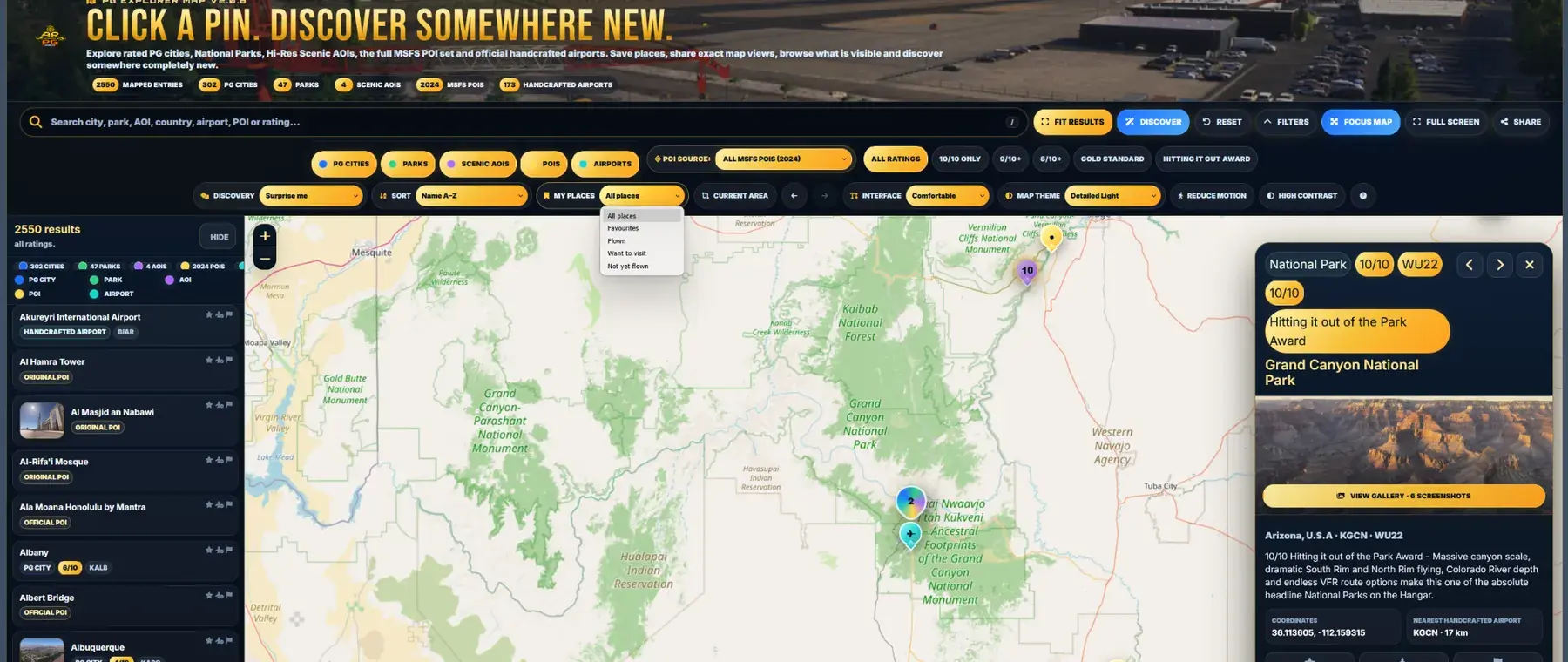
Find a brilliant new place to fly without scrolling through hundreds of old list entries. Search, filter, click a pin and start exploring.
Four simple steps are enough to find your next flight.
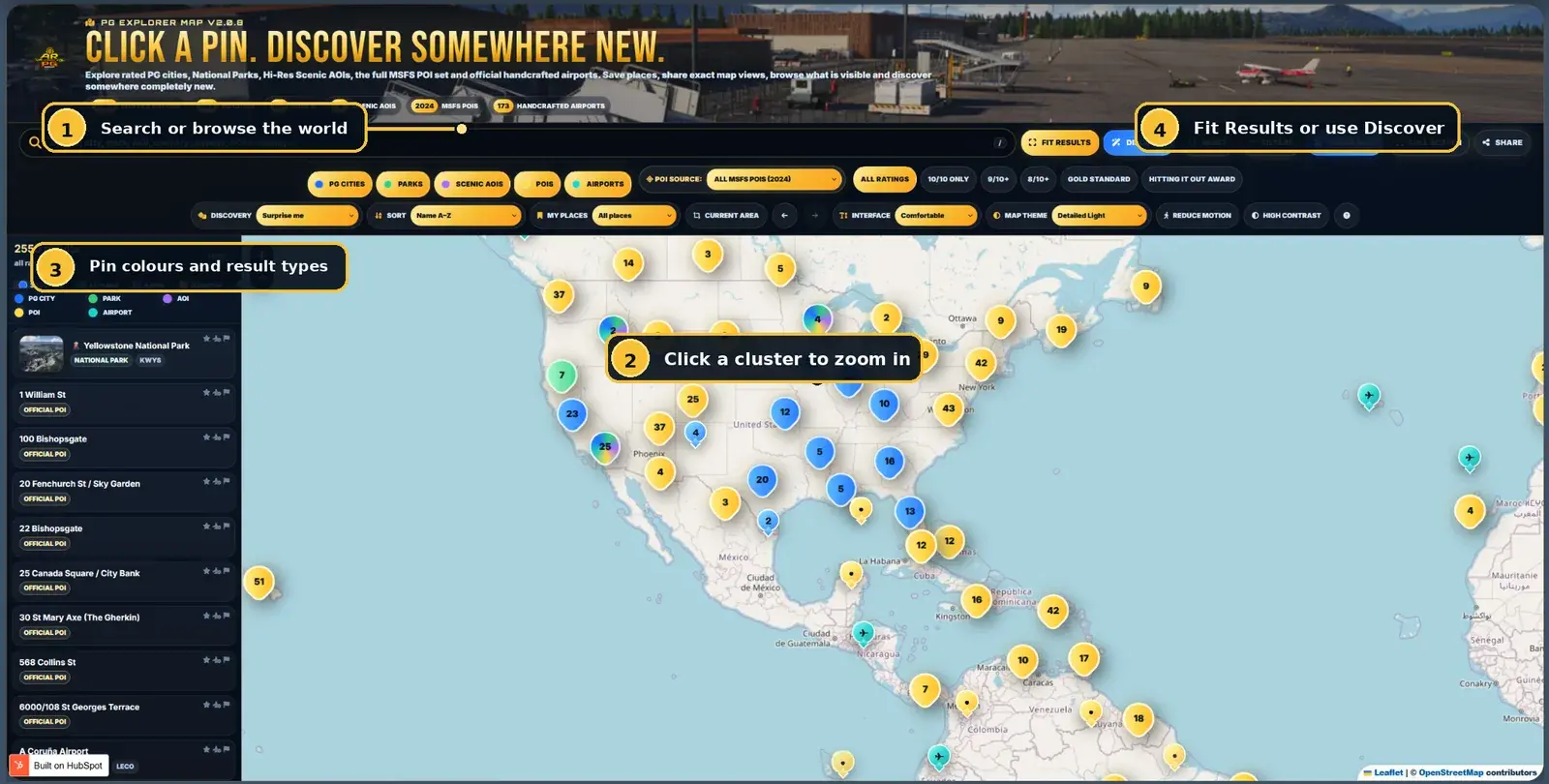
Type a city, country, ICAO, park, POI or rating—or move around the world map.
Choose categories, ratings, awards, POI updates or only places visible in the current area.
Open ratings, coordinates, nearby airports, descriptions, screenshots and useful links.
Favourite it, mark it as flown, add it to Want to Visit or share the exact map view.
Zoom out for discovery, click numbered clusters to move closer and use the colour legend to recognise each location type.
The very best rated photogrammetry cities on the Hangar.
The Hangar's standout award for exceptional National Parks and scenic regions.
You can keep the search broad or combine several controls to create a very specific shortlist.
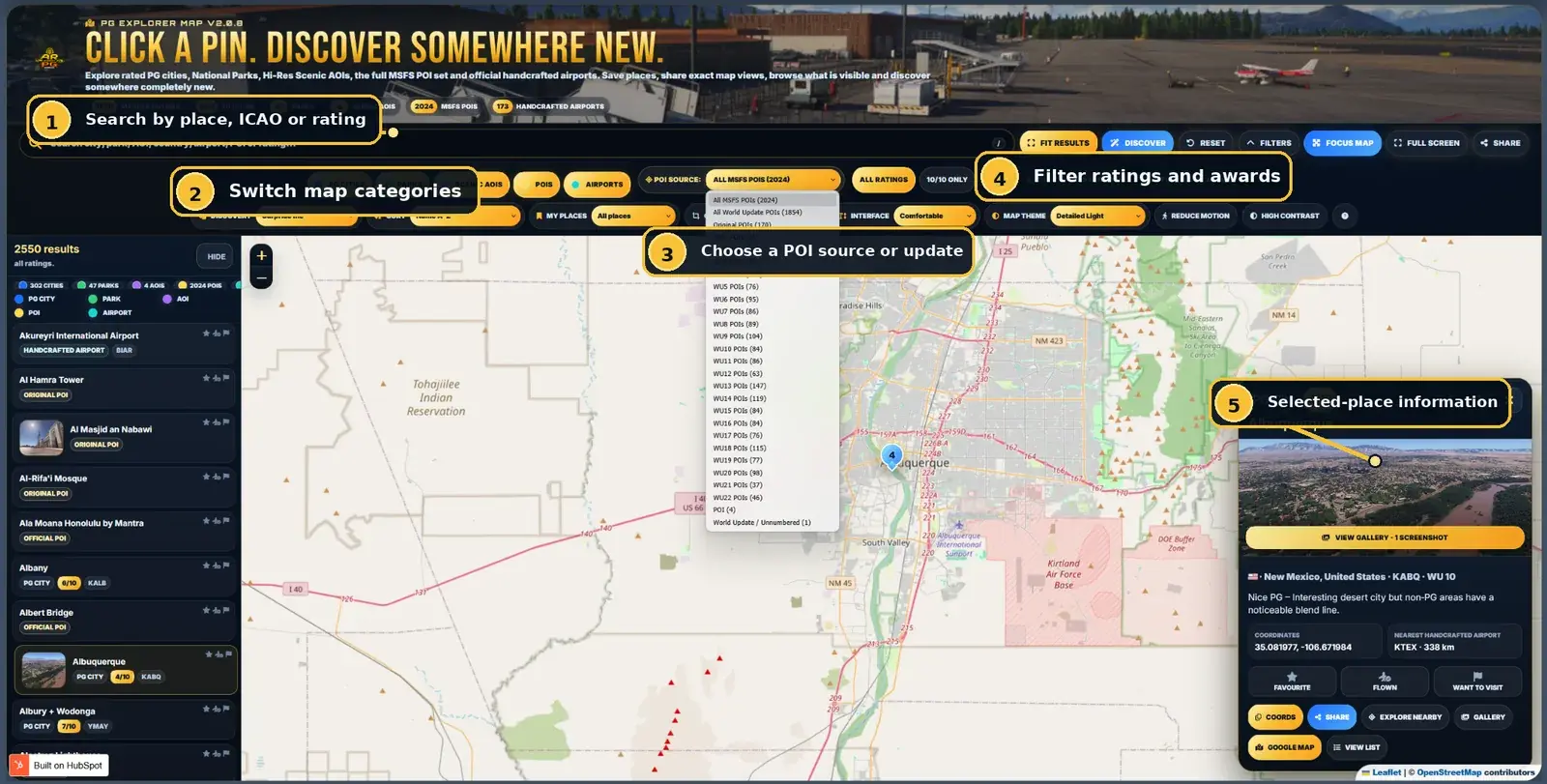
Try a city, park, country, landmark, airport name, ICAO code or a rating such as 10/10.
Show or hide PG Cities, Parks, Scenic AOIs, POIs and Airports to remove map clutter.
View all MSFS POIs, only original POIs, all World Update POIs or a specific WU/CU collection.
Show all ratings, only 8/10+, 9/10+, 10/10, Gold Standard or award-winning parks.
Clicking a result or pin opens the full information panel without covering the whole map.
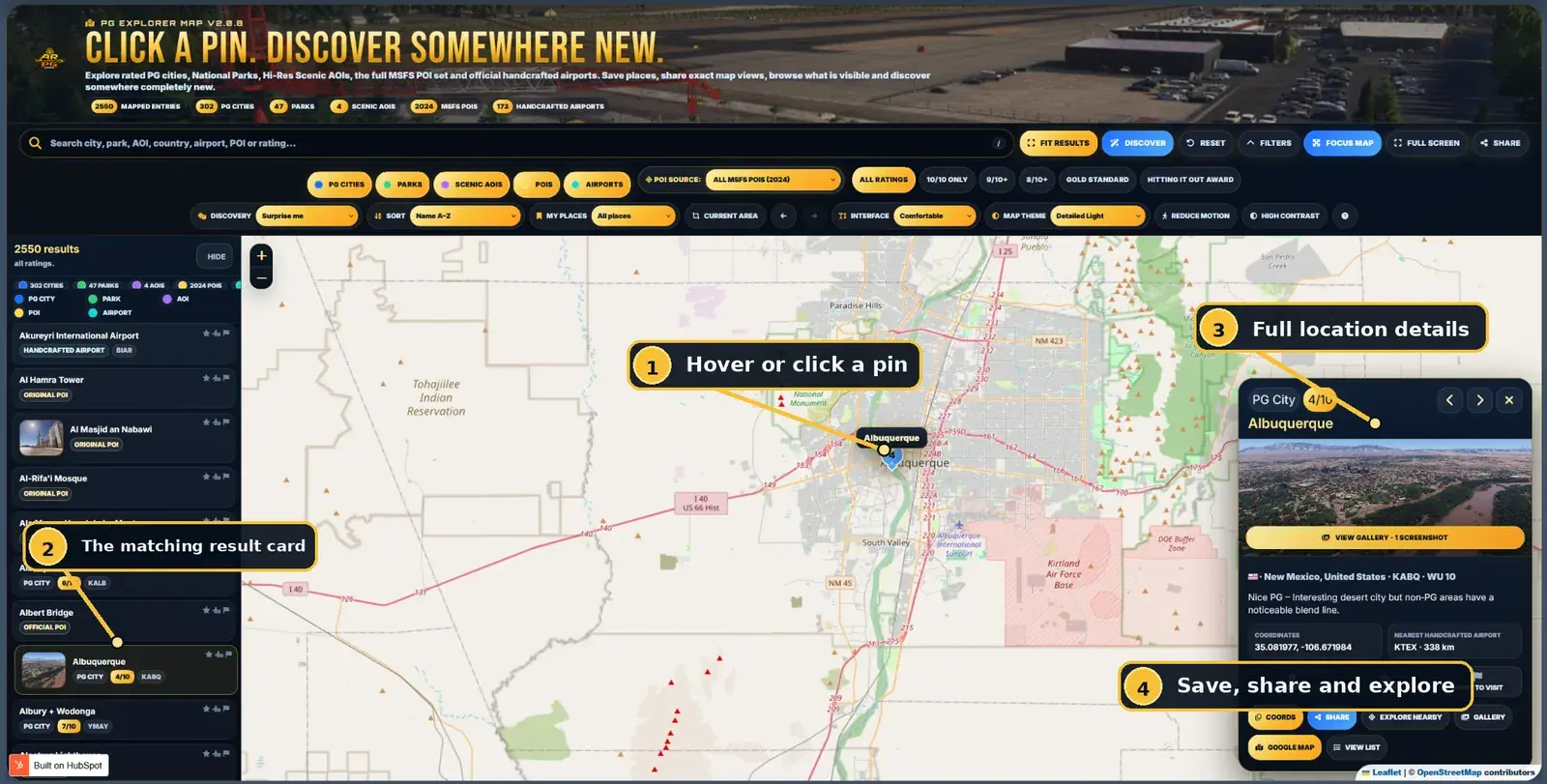
Keep track of where you have been and where you would like to fly next. Your selections stay in that browser.
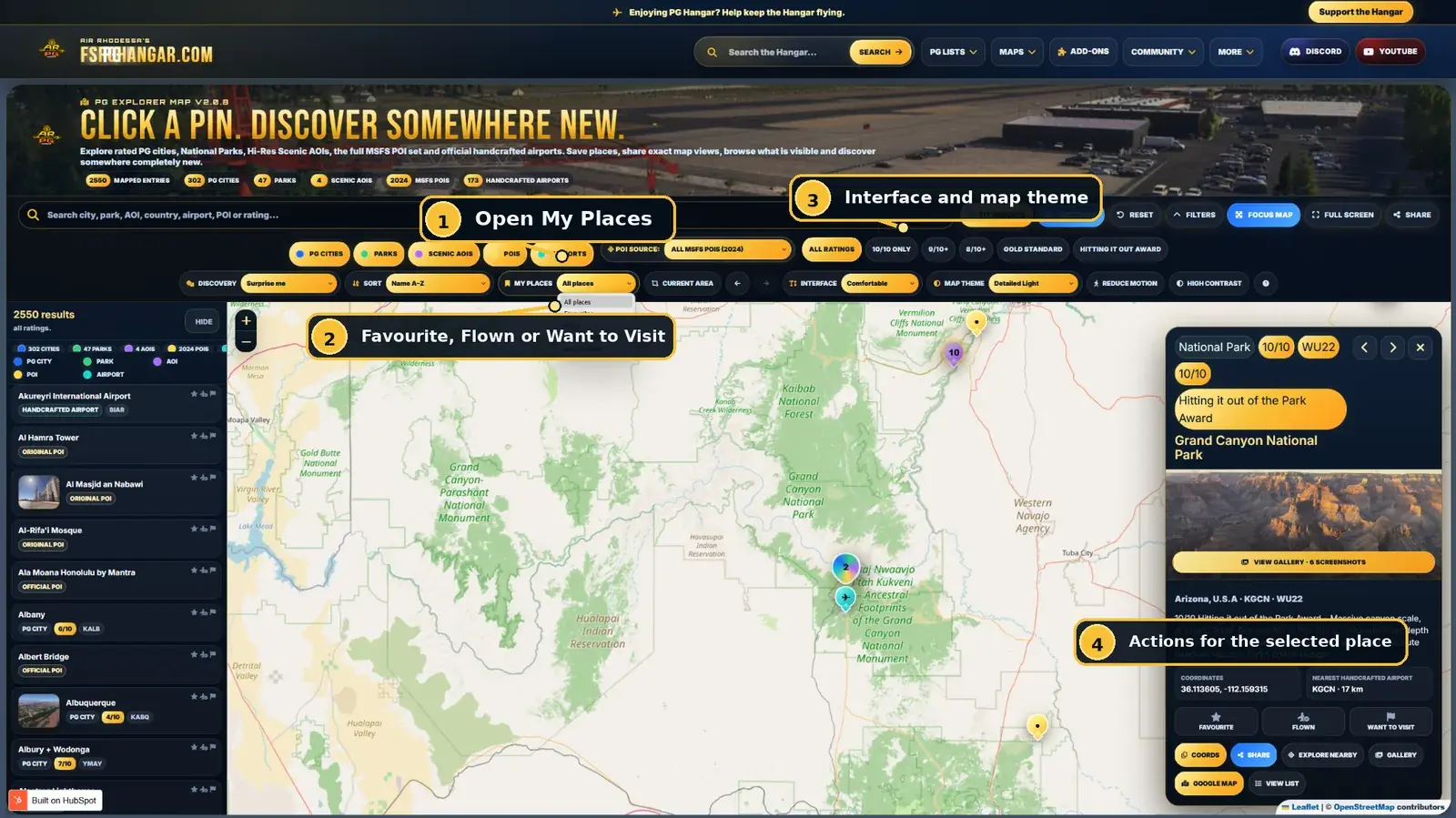
Your personal collection of places you particularly enjoy.
A simple record of destinations you have already explored.
A ready-made shortlist for future flights.
Choose the map that is easiest on your eyes. Auto follows your device theme.
Change interface size, reduce movement or increase contrast for improved comfort.
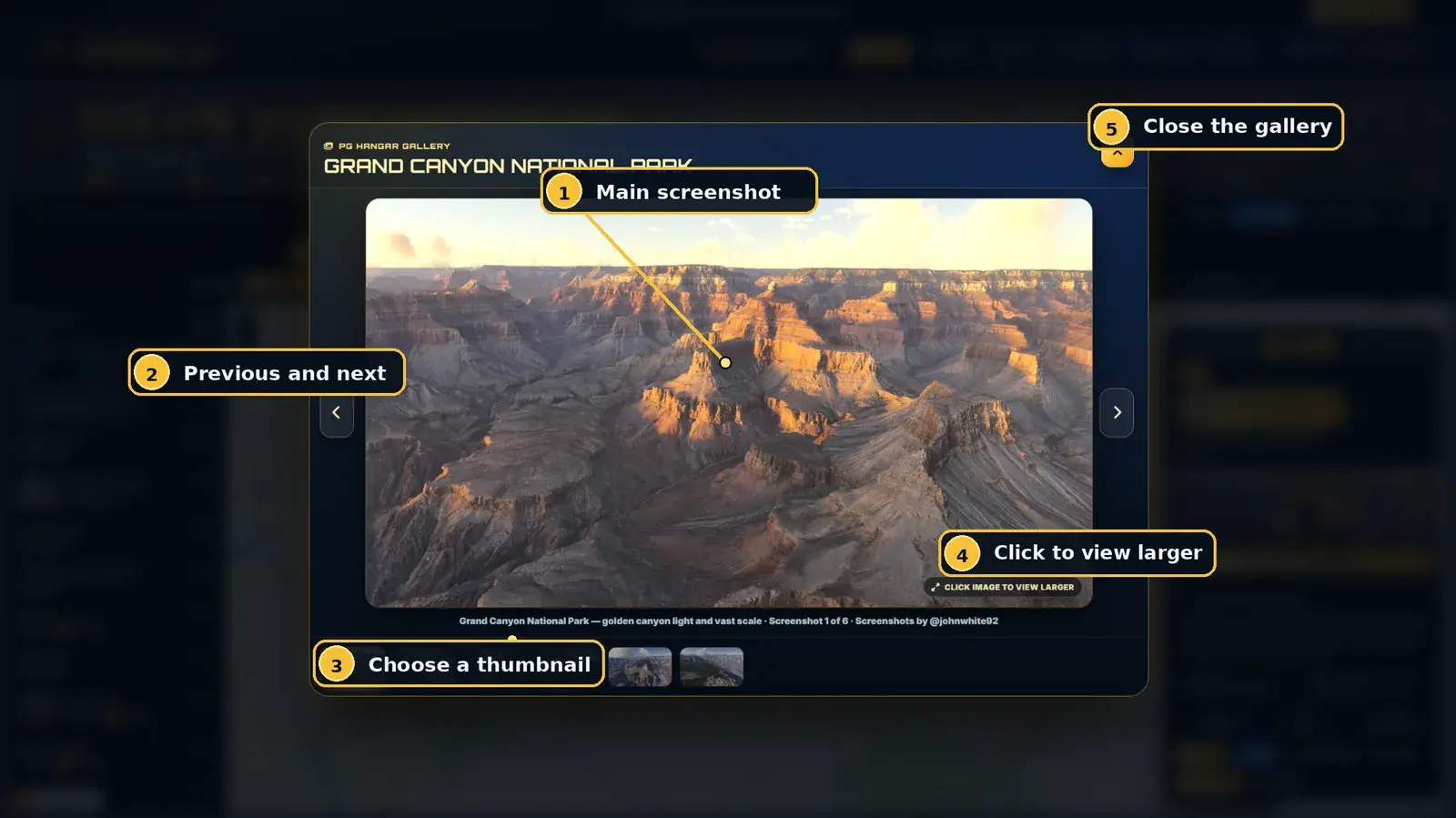
Galleries show how a place actually looks inside Microsoft Flight Simulator and help you decide whether it suits your next flight.
The Explorer can preserve far more than a normal map link, making it ideal for Discord, forums, flight plans and recommendations.
The Share button keeps the selected location, map position, zoom and relevant filters in the link.
Use Discover when you want the Hangar to choose somewhere completely new.
Discovery can work from your current filtered results instead of the entire database.
Sort alphabetically, by rating or by distance from the centre of the current map.
The back and forward arrows step through your recent map positions.
The location panel identifies a nearby handcrafted airport when one is available.
The same Explorer works on smaller screens, with panels rearranged to leave as much room as possible for the map.
The filter drawer collapses so the map remains the main focus.
Use Hide to give the map more room, then reopen the list whenever you need it.
Touch devices open the same detailed location panel with a normal tap.
These are especially useful on a phone when exploring a busy region.
That is a cluster. Click it and the map will zoom closer until the individual locations separate.
Galleries and thumbnails are being added gradually. The location is still fully usable without one.
It filters the official MSFS POI collection by original POIs, all World Updates or a particular update.
No. They are stored only in your current browser and do not require registration.
Because the list is saved locally. A different browser, computer or phone has its own separate collection.
Yes. Select the location and use Share. The link opens the Explorer with that place and map view restored.
Detailed Light shows the classic map, Detailed Dark is easier for night-time browsing and Auto follows your device.
The quickest way to answer: “Where shall I fly today?”